
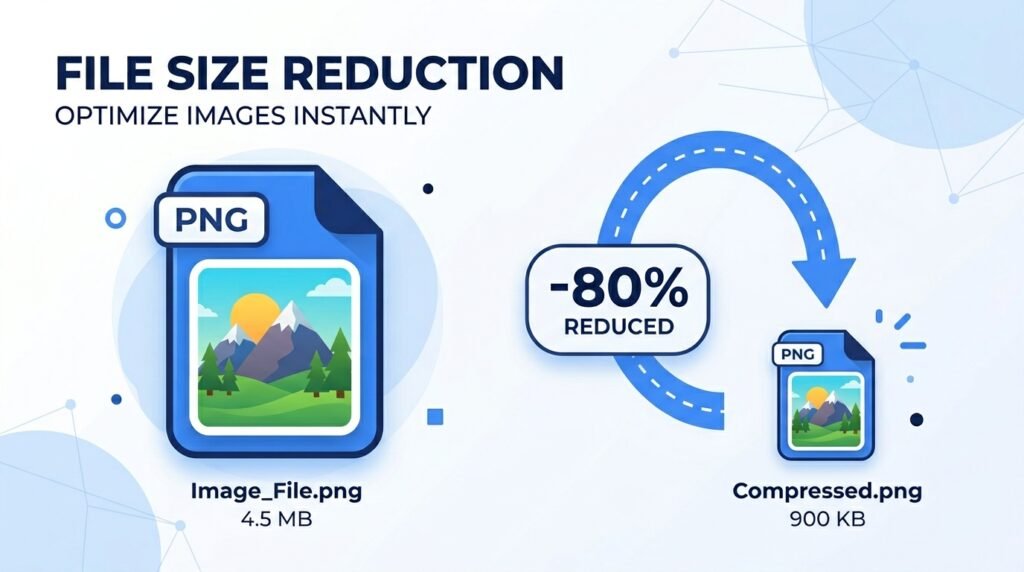
Big image files slow down your website, eat up storage, and make uploads painful. The good news: you can shrink an image’s file size by 60-90% while keeping it looking sharp — if you know how compression actually works. This guide walks through exactly how to do it, free, in your browser.
1. What Is Image Compression?
Image compression reduces the file size of a photo or graphic by removing unnecessary or redundant data. There are two main types:
- Lossy compression — removes some image data permanently to achieve a much smaller file size. JPG uses this method. Done correctly, the quality loss is invisible to the human eye.
- Lossless compression — reduces file size without removing any image data at all. PNG uses this method, which is why PNG files are usually larger than JPGs.
Modern compression tools use smart algorithms that analyze each image and remove only the data your eyes won’t miss — which is how you can cut a file from 5MB to 500KB with no visible difference.
💡 Good to Know: A 2MB photo compressed properly can often become 200-400KB with zero noticeable quality loss. That’s an 80-90% size reduction.
2. Why Image Size Matters
A large, uncompressed image causes more problems than people realize:
- Slow Website Loading — Heavy images are one of the biggest causes of slow websites. Google directly factors page speed into search rankings, so bloated images can hurt your SEO.
- Wasted Mobile Data — Visitors on mobile data pay (literally) for every megabyte your page loads. Compressed images load faster and cost less for your users.
- Storage Limits — Whether it’s your phone, cloud storage, or a CMS like WordPress, large images fill up storage quotas fast.
- Email & Upload Limits — Many platforms (job portals, email attachments, online forms) cap file sizes at 1-5MB. Compression helps you fit within these limits.
- Slower App Performance — Apps and websites that display many images (galleries, e-commerce, social feeds) become sluggish when images aren’t optimized.
3. How to Compress an Image Online — Step by Step
Using ToolkitsPro’s free Image Compressor, you can shrink any photo in seconds without installing software.
Step 1: Open the Image Compressor Tool Go to toolkitspro.online/image-compressor/. No sign-up or installation needed — it works directly in your browser on any device.
Step 2: Upload Your Image Click the upload area or drag and drop your photo. The tool supports JPG, PNG, and WebP formats.
Step 3: Choose Your Compression Level Select how much you want to compress — light (minimal size reduction, maximum quality), balanced (recommended for most uses), or maximum (smallest file size, slight quality trade-off).
Step 4: Preview Before and After The tool shows you the original size versus the compressed size side by side, so you can see exactly how much space you’re saving before downloading.
Step 5: Download Your Compressed Image Click download to save your new, smaller file — ready to upload to your website, send via email, or share on social media.
✅ Pro Tip: For website images, aim for under 200KB per image whenever possible. This keeps pages loading fast without sacrificing visual quality.
4. Tips for the Best Compression Results
Pick the Right Format First Use JPG for photos with lots of colors and gradients (like portraits or landscapes). Use PNG only when you need transparency or sharp text/logos. Choosing the right format before compressing makes a huge difference.
Don’t Over-Compress Compressing too aggressively introduces visible blur or blocky artifacts, especially around edges and text. Use the “balanced” setting first and only go higher if file size is critical.
Resize Before Compressing If your image is larger than it needs to be (e.g., a 4000px wide photo for a 800px wide blog post), resize it down first. Combining resizing with compression gives you the smallest possible file size.
Batch Process Similar Images If you’re compressing many photos for a gallery or product catalog, use the same compression setting across all of them for visual consistency.
5. Common Use Cases
- Bloggers & Website Owners — Faster-loading blog posts and pages improve both user experience and Google search rankings.
- Online Sellers — Product photos need to load quickly on e-commerce sites without losing the visual detail that helps sell the product.
- Students & Job Seekers — Many application portals reject files over a certain size — compression helps you meet those limits instantly.
- Social Media Managers — Faster uploads and consistent quality across platforms like Instagram, Facebook, and LinkedIn.
- App & Web Developers — Optimized images reduce app size and improve loading performance for end users.
6. JPG vs PNG vs WebP — Which Should You Compress To?
| Format | Best For | Compression | Transparency |
|---|---|---|---|
| JPG | Photos, complex images | Excellent (lossy) | No |
| PNG | Logos, screenshots, text | Good (lossless) | Yes |
| WebP | Modern websites, all-purpose | Best of both | Yes |
For most everyday use — photos, blog images, social media — JPG offers the best balance of small size and high quality. If you need transparency, use PNG, but compress it carefully since it starts larger. WebP is increasingly recommended for websites since it gives PNG-like quality at JPG-like file sizes.
7. Frequently Asked Questions
Will compressing my image reduce its quality? With proper compression settings, the quality loss is invisible to the human eye. Our tool uses smart algorithms that only remove data you won’t notice missing. Heavy over-compression can cause visible quality loss, which is why we recommend the “balanced” setting for most images.
Is the Image Compressor tool really free? Yes, completely free with no sign-up, no watermarks, and no daily limits. Compress as many images as you need.
What’s the maximum file size I can upload? The tool supports most standard photo sizes from phones and cameras. For very large files, the tool will still process them, though processing time may be slightly longer.
Are my photos stored on your servers? No. Your images are processed and the compressed file is delivered to you for download. We do not store, view, or share your photos.
Can I compress multiple images at once? Yes, you can upload and compress images one after another quickly, making it easy to batch-process a full set of photos.
Which compression level should I choose? For most cases, choose “balanced” — it gives a significant size reduction with no visible quality loss. Use “maximum” only when file size is the top priority, such as for strict upload limits.
Related Tools You Might Need
- Image to PDF Converter — Combine your compressed images into a single PDF document.
- Image Cropper — Resize and crop your photo before compressing for even smaller file sizes.
- Background Remover — Remove the background from your image before compression.
- PNG to SVG Converter — Convert logos and icons to scalable vector format.
Try It Now: Compress Your Images Free →