
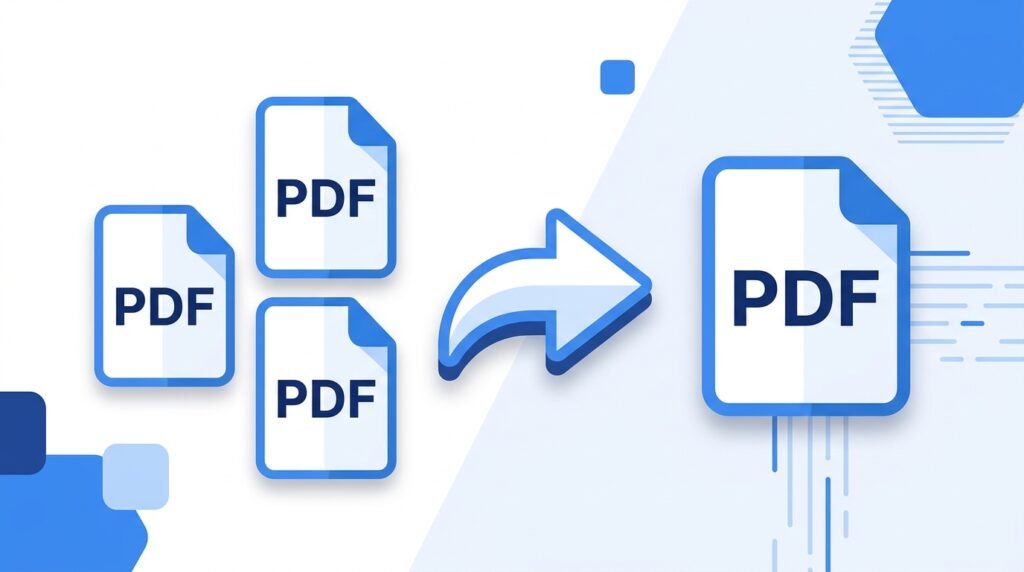
Need to combine multiple PDF files into one? Whether you’re putting together a report, merging invoices, or combining scanned pages, this guide shows you exactly how to merge PDF files online for free — no software, no sign-up, no cost.
1. What Does Merging PDF Files Mean?
Merging PDF files means combining two or more separate PDF documents into a single, unified PDF file. The pages from each file are joined together in the order you choose, giving you one clean document instead of several scattered files.
This is different from simply attaching multiple PDFs to an email — merging actually combines the content into one file that anyone can open as a single document.
💡 Good to Know: When you merge PDFs, the original files are not changed or deleted. The tool creates a brand new combined file, leaving your originals exactly as they were.
2. Why Would You Need to Merge PDFs?
People merge PDF files for dozens of everyday reasons:
- Work Reports — Combine a cover page, data sheets, and charts into one professional document before sending to a client or manager.
- Invoices & Receipts — Merge multiple monthly invoices into a single file for accounting or tax filing.
- Scanned Documents — Scanners often save each page as a separate file. Merging joins them back into one complete document.
- CVs & Portfolios — Combine your resume, cover letter, and portfolio samples into one file for job applications.
- Legal & Academic Documents — Merge contracts, certificates, or research papers into a single submission file.
- Assignment Submissions — Students often need to submit multiple documents as one PDF file to online portals.
3. How to Merge PDFs Online — Step by Step
Using ToolkitsPro’s free PDF Merger tool, you can combine any number of PDF files in seconds.
Step 1: Open the PDF Merger Tool
Go to toolkitspro.online/merge-pdf/. No account or software required — works directly in your browser on any device.
Step 2: Upload Your PDF Files
Click the upload area and select the PDF files you want to combine. You can upload multiple files at once. The tool supports standard PDF files of any size.
Step 3: Arrange the Order
Drag and drop the uploaded files to arrange them in the exact order you want. The final merged PDF will follow this order — so put the cover page first, appendix last, and so on.
Step 4: Click Merge
Hit the Merge button. The tool combines all your files into one PDF within seconds.
Step 5: Download Your Merged PDF
Click download to save your newly combined PDF file. It is now ready to share, email, print, or upload anywhere.
✅ Pro Tip: Before merging, check each PDF file individually to make sure the page orientation is correct (portrait vs landscape). Mismatched orientations can look unprofessional in the final document.
4. Tips for Getting the Best Merged PDF
Check File Order Before Merging
The most common mistake is getting the file order wrong. Always review the sequence before clicking merge — especially for documents with a cover page, table of contents, or numbered sections.
Use Consistent Formatting
If your PDF files have different fonts, margins, or layouts, the merged result will look inconsistent. Where possible, create all source documents with similar formatting before converting and merging.
Compress After Merging
If your merged PDF is large (multiple files with images), run it through a PDF compressor to reduce the file size — especially if you need to email it or upload it to a portal with size limits.
Remove Unnecessary Pages First
Before merging, use a PDF splitter to remove any blank pages, duplicate covers, or unwanted sections from each file. This keeps the final merged document clean and professional.
5. Common Use Cases in Detail
For Professionals and Office Workers
Workplace documents are constantly scattered across multiple files — project briefs, supporting data, approval forms. Merging them into one PDF before sending to a client or uploading to a system saves time and looks far more organized.
For Students
University portals and online submission systems often require all assignment materials in a single PDF. Merging your answer sheets, references, and cover page takes 30 seconds with ToolkitsPro.
For Freelancers
Sending a client proposal means combining your service overview, pricing sheet, case studies, and terms into one polished document. Merging PDFs instantly makes you look more professional.
For Small Business Owners
Monthly reports, vendor invoices, and tax documents pile up fast. Merging related files into organized monthly bundles makes bookkeeping and auditing dramatically easier.
6. Merging PDFs vs. Other PDF Tasks
| Task | What It Does | When to Use |
|---|---|---|
| Merge PDF | Combines multiple PDFs into one | Multiple files → one document |
| Split PDF | Breaks one PDF into separate pages/files | Remove pages or extract sections |
| Compress PDF | Reduces file size | Large files that need to be emailed or uploaded |
| Image to PDF | Converts images into PDF format | Scanned photos, receipts, ID cards |
7. Frequently Asked Questions
Is the PDF Merger tool really free?
Yes, 100% free with no sign-up, no watermarks added to your document, and no limits on how many files you can merge.
How many PDF files can I merge at once?
You can merge multiple files in a single session. Upload as many as you need and arrange them in your preferred order before merging.
Is my data safe? Are my files stored?
Your files are processed securely and immediately deleted after you download the merged result. We never store, read, or share your documents.
Can I merge PDFs on my phone?
Yes. ToolkitsPro works on all devices including Android and iPhone. Open the tool in your mobile browser, upload your files, and download the merged PDF — no app needed.
What if my PDF is password-protected?
Password-protected PDFs cannot be merged until the password protection is removed. You will need to unlock the PDF first before merging.
Will merging reduce the quality of my PDF?
No. The merge process simply joins the files together — it does not re-compress or alter the content in any way. Your text, images, and formatting remain exactly as they were in the originals.
Does the merged PDF retain bookmarks and hyperlinks?
Yes, in most cases the internal bookmarks and hyperlinks from each source PDF are preserved in the merged output.
Related Tools You Might Need
- PDF Splitter — Split a large PDF into individual pages or sections.
- Image to PDF — Convert images into PDF format before merging.
- Image Compressor — Reduce image sizes before converting and merging into PDF.
- PDF to Word — Convert your merged PDF into an editable Word document.