
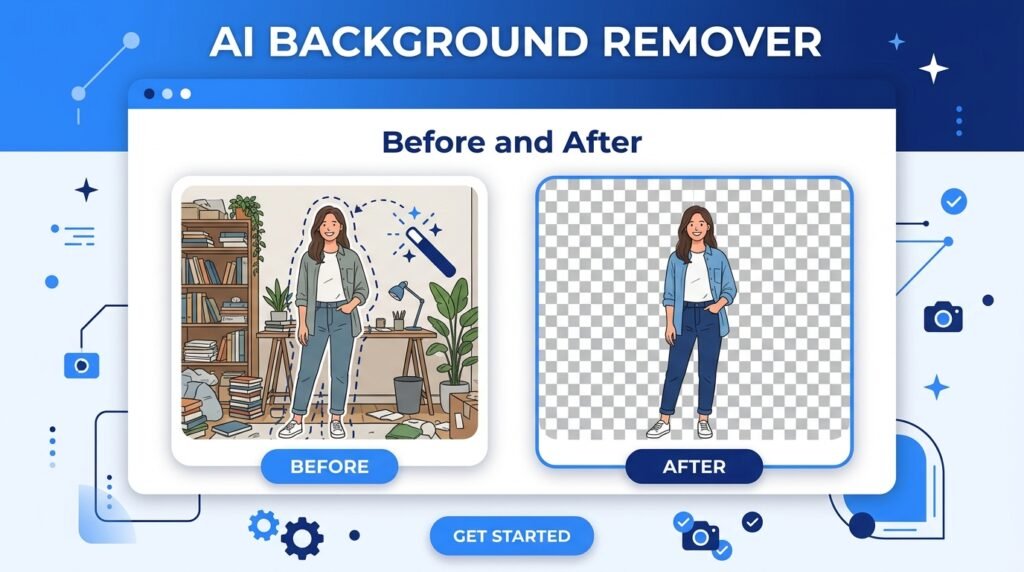
Want a clean, transparent background on your photo — without Photoshop or any paid software? This step-by-step guide shows you exactly how to remove image backgrounds online for free, in seconds.
1. What is Background Removal?
Background removal is the process of separating the main subject of an image — such as a person, product, or object — from its background, leaving either a transparent area or replacing it with a new color or design.
In the past, this was a time-consuming task that required professional software like Adobe Photoshop and a trained hand with selection tools. Today, thanks to advances in artificial intelligence, background removal can be done automatically in just a few seconds — directly in your browser, completely free.
The result is a PNG image with a transparent background, which you can then place on any color, add to a design, use on a website, or print on merchandise.
💡 Good to Know: Background removal tools save the final image as a PNG file, because PNG is the only common image format that supports transparent areas. JPG does not support transparency.
2. Why Would You Need to Remove a Background?
You might be surprised how many everyday situations call for a clean, background-free image. Here are the most common reasons people remove backgrounds from photos:
- Product Photos — Online sellers on Amazon, Daraz, or Instagram need product images on a clean white background for a professional look.
- Profile Pictures — Remove messy backgrounds from selfies for LinkedIn, official ID applications, or professional portfolios.
- Graphic Design — Designers use transparent PNGs to place subjects on posters, banners, flyers, and social media graphics.
- Social Media Content — Create eye-catching posts and stories by placing people or products on custom colored or branded backgrounds.
- School Projects — Students use background-free images in presentations, posters, and digital projects for a clean, neat look.
- Business Use — Remove backgrounds from logos, team photos, and marketing visuals for use in presentations and websites.
3. How to Remove a Background Online — Step by Step
Using ToolkitsPro’s free Background Remover tool, you can remove the background from any image in under 10 seconds. Here is the full process:
Step 1: Open the Background Remover Tool
Go to toolkitspro.online/background-remover/. No sign-up, no account, and no app download is required. The tool opens instantly in your browser on any device.
Step 2: Upload Your Image
Click the upload button and select a photo from your device, or simply drag and drop your image file into the tool. The tool supports JPG, PNG, and WebP formats. For best results, use a high-resolution image where the subject is clearly visible.
Step 3: Let the AI Process Your Image
Once uploaded, the AI automatically detects the subject and removes the background within seconds. You do not need to manually trace or select anything — the AI handles the entire process on its own.
Step 4: Preview the Result
The processed image will appear with a transparent background, shown as a checkered pattern. Inspect the edges carefully — the AI usually does a very clean job, especially around hair, clothing, and sharp objects.
Step 5: Download Your Image
Click the Download button to save your background-free image as a PNG file. It is now ready to use in any design, website, presentation, or social media platform.
✅ Pro Tip: The whole process takes less than 30 seconds from start to finish. You can remove backgrounds from as many images as you want — completely free, with no daily limits.
4. Tips for Getting the Best Results
While AI background removal is very accurate, the quality of your result depends a lot on the input image. Follow these tips to get the cleanest possible output:
Choose a High-Contrast Image
AI tools work best when there is a clear visual difference between the subject and the background. An image of a person standing in front of a plain white wall will produce a cleaner result than someone standing in front of a busy, colorful scene that closely matches their clothing.
Use a High-Resolution Photo
The higher the resolution of your original image, the better the AI can detect edges, fine details like hair strands, and complex shapes. Blurry or very small images may produce rougher edges after background removal.
Avoid Transparent or Reflective Subjects
Objects like glass bottles, mirrors, or transparent fabrics can confuse AI tools because the background shows through the subject itself. These cases may need manual editing for perfect results.
Check Hair and Fur Edges
Fine details like curly hair, fluffy animals, or feathered edges are the hardest challenge for any background removal tool. Modern AI handles these remarkably well, but if the edges look uneven, you can refine them using any basic image editor after downloading.
⚠️ Important: Always keep a copy of your original image before background removal. Once you download the processed PNG, you cannot undo the change unless you still have the original file.
5. Common Use Cases in Detail
For Online Sellers and E-Commerce
If you sell products online — whether on Daraz, Amazon, eBay, Etsy, or your own website — you know that product images make or break a sale. Platforms like Amazon actually require product photos to have a pure white background. Instead of hiring a photographer or renting a studio, you can simply photograph your product anywhere and use a background remover to make it look perfectly professional.
With ToolkitsPro, you can process multiple product photos in minutes, saving hours of editing time and thousands of rupees in photography costs.
For Freelancers and Graphic Designers
As a designer, you frequently need images with no background for posters, social media graphics, presentations, and web design. Instead of spending time manually cutting out subjects in Photoshop, use a background remover to do it in seconds and spend your time on the creative parts that matter.
For Students and Teachers
Creating school presentations, science projects, or educational materials often requires placing images on specific colored backgrounds or combining multiple photos. Background removal makes this easy for anyone, even without design experience.
For Job Applications and IDs
Many official documents — including CVs, university applications, and government ID forms — require a passport-style photo against a white or light blue background. Instead of visiting a photo studio, you can use a background remover to prepare your photo yourself.
6. Manual Editing vs. AI Background Removal — Which is Better?
For years, removing a background required manual work in Photoshop using tools like the Magic Wand, Pen Tool, or Select Subject. Here is how the two approaches compare:
| Feature | Manual (Photoshop) | AI Tool (ToolkitsPro) |
|---|---|---|
| Time Required | 5–30 minutes per image | Under 10 seconds |
| Skill Needed | High — requires Photoshop knowledge | None — fully automatic |
| Cost | Paid software required | 100% Free |
| Installation | Software download required | Works in browser |
| Mobile Friendly | Limited | Yes — any device |
| Complex Edges (Hair) | Very precise with effort | Good — AI handles well |
| Best For | Professional, pixel-perfect work | Quick, everyday use |
For the vast majority of everyday needs — product photos, profile pictures, design work, school projects — an AI background remover is faster, easier, and completely free. Manual editing in Photoshop is only necessary for extremely complex images or professional print work where every pixel matters.
7. Which File Format Should You Save After Removing a Background?
Always Save as PNG
When you remove a background, the empty areas become transparent. PNG is the only widely supported image format that preserves this transparency. If you save a transparent image as a JPG, those areas will be filled with a white or black background automatically — losing the transparency entirely.
When to Use JPG Instead
If you plan to place your subject on a specific solid color background right away, you can export as JPG after adding the background in a design tool. JPG files are smaller than PNG and load faster on websites. But for maximum flexibility — especially if you are not sure what background you will use — always keep a PNG copy.
Using the PNG in Design Tools
Your background-free PNG can be imported into any design tool — Canva, Adobe Express, Microsoft PowerPoint, Google Slides, or any web-based editor. Simply insert the PNG and it will appear without any white box around the subject, blending perfectly into any background color or design.
✅ Tip: Always save your original photo AND the background-removed PNG in separate folders. You may need to re-process the image later with different settings or for a different use case.
8. Frequently Asked Questions
Is background removal really free on ToolkitsPro?
Yes, completely free. You do not need to create an account, enter a credit card, or download anything. Simply open the tool, upload your image, and download the result — at no cost, with no daily limits.
What image formats does the tool support?
The ToolkitsPro Background Remover supports JPG, PNG, and WebP image formats as input. The result is always saved as a PNG file to preserve the transparent background.
Is my photo kept private? Will anyone see my images?
Your privacy is fully protected. The tool processes your image using AI and immediately discards it after you download the result. We do not store your photos on our servers, and no human ever sees your uploaded images.
Can I remove backgrounds from photos with complex hair or fur?
Yes. Our AI tool is specifically trained to handle fine details like curly hair, flyaway strands, animal fur, and wispy edges. For most photos, the result is clean and natural-looking without any manual touching up.
Can I use the tool on my phone?
Absolutely. ToolkitsPro is fully mobile-friendly and works on all smartphones and tablets, including Android and iPhone. No app download required — just open the tool in your phone’s browser and use it like on a computer.
What can I do after removing the background?
After downloading your transparent PNG, you can place it on any new background color, use it in a design on Canva or PowerPoint, upload it to an online store, add it to a website, or print it on a product. The transparent PNG works in virtually any design tool or platform.
How is this different from Photoshop’s background removal?
Photoshop gives you more control and can produce more precise results for very complex images, but it requires expensive software and skill to use properly. ToolkitsPro’s AI tool does the same job automatically in seconds — for free — with results that are more than good enough for product photos, social media, and everyday design needs.