In the modern digital landscape, user experience (UX) and website performance are the cornerstones of online success. Whether you are a web developer trying to shave milliseconds off your page load time, a graphic designer aiming for pixel-perfect clarity, or a digital marketer focused on improving your search engine rankings, the format of your visual assets matters.
For years, standard raster images like PNGs and JPEGs have been the go-to formats for the web. However, as high-resolution screens (like Apple’s Retina displays) become the industry standard and mobile responsiveness becomes mandatory, traditional image formats are showing their limitations.
Enter SVG (Scalable Vector Graphics).
Converting your static PNG images into scalable SVG vectors is one of the most effective yet overlooked strategies to optimize your digital assets. In this ultimate guide, we will break down everything you need to know about PNG to SVG conversion, why it is critical for your website’s SEO, and how you can use the free ToolkitsPro PNG to SVG Converter to do it flawlessly in seconds.
Understanding the Basics: What is a PNG Image?
To appreciate the true power of an SVG file, we must first understand what happens under the hood of a PNG.
PNG, which stands for Portable Network Graphics, is a raster graphics file format. Raster images are built using a fixed grid of individual colored blocks called pixels.
Characteristics of PNG Files:
- Lossless Compression: Unlike JPEGs, PNGs do not lose quality when compressed or saved repeatedly.
- Transparency Support: PNGs support alpha channels, allowing for transparent backgrounds—a feature that made them incredibly popular for web logos, icons, and product images.
- Color Depth: They support millions of colors, making them ideal for complex digital photographs that require rich color gradients.
The Downside of PNGs on the Web:
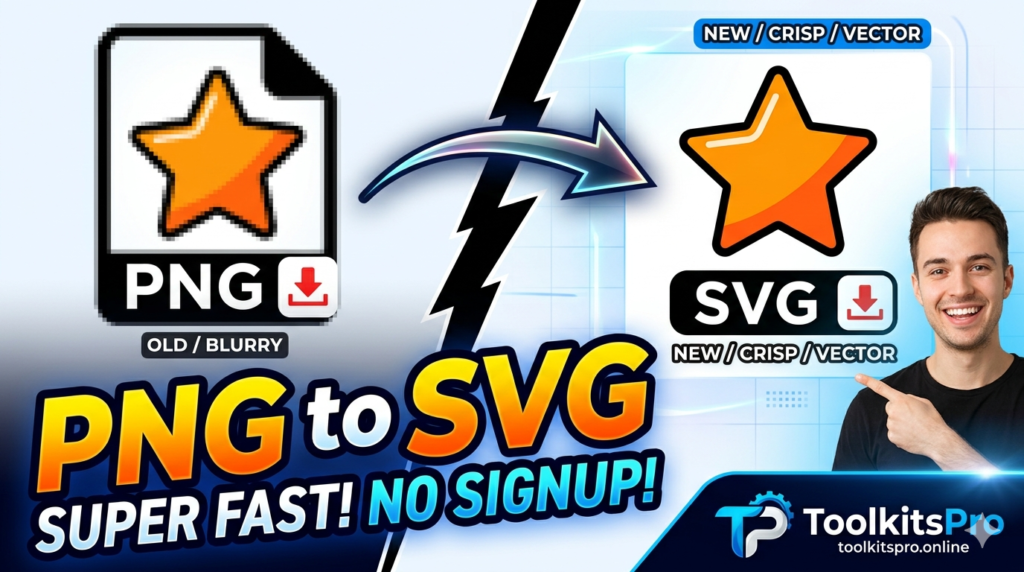
Because PNGs rely on a fixed pixel grid, they suffer from a major flaw: scalability. If you try to enlarge a PNG file beyond its original dimensions, the computer has to guess how to fill the gaps between pixels. This results in a blurry, pixelated, or jagged image. Furthermore, high-resolution PNGs can have massive file sizes, which can severely drag down your website loading speeds.
What is an SVG File?
SVG, which stands for Scalable Vector Graphics, is a fundamentally different way of displaying imagery online. Instead of relying on a grid of static pixels, SVG files use mathematical formulas, lines, points, curves, and shapes to draw images.
Characteristics of SVG Files:
- Infinite Scalability: Because SVGs are mathematically rendered, you can scale them up to the size of a billboard or down to the size of a smartwatch icon without losing a single pixel of clarity. They remain perfectly crisp at any resolution.
- XML-Based Code: An SVG file is essentially just a text document containing XML code. It describes exactly where lines start, where curves bend, and what colors fill a specific geometric space.
- Ultra-Lightweight: Because it is text code rather than raw pixel data, an SVG file is usually a fraction of the size of an equivalent PNG file.
Direct Comparison: PNG vs. SVG
To give you a clearer picture of when to use which format, let’s look at a head-to-head comparison:
| Feature | PNG (Raster) | SVG (Vector) |
| Composition | Static Grid of Pixels | Mathematical Equations & Code |
| Scalability | Loses quality when enlarged (Pixelates) | Infinitely scalable without losing quality |
| File Size | Large (increases drastically with resolution) | Extremely small and lightweight |
| Best Used For | Complex photos, screenshots, realistic artwork | Logos, icons, UI elements, simple illustrations |
| SEO Value | Low (Search engines can only read file names/alt tags) | High (Search engines can read and index the XML code) |
| Animation | Static (Requires APNG or conversion to GIF) | Fully animatable via CSS and JavaScript |
Why You Must Convert PNG to SVG: The Core Benefits
If your website is still packed with heavy PNG files for structural elements like logos, UI buttons, icons, and basic graphics, you are leaving money and performance on the table. Here is why making the switch using ToolkitsPro is vital for your online platform:
1. Unmatched Website Speed & Performance Optimization
Page speed is no longer just a luxury; it is a critical ranking factor for Google’s Core Web Vitals. Users expect websites to load in under two seconds. If your page takes longer, your bounce rate skyrockets.
Because SVG files are written in text code, web browsers can parse and render them almost instantaneously. Replacing heavy PNG icons with lightweight SVGs can cut your total webpage weight by kilobytes or even megabytes, significantly speeding up your server response times.
2. Immaculate Display on High-DPI and Retina Screens
Modern smartphones, laptops, and 4K monitors use high pixel-density displays. If you display a standard 1x PNG logo on a Retina screen, it will look blurry and unprofessional. To fix this with PNGs, you have to upload 2x or 3x larger files, which slows down your site.
An SVG solves this completely. One single SVG file will look perfectly sharp on an old desktop monitor, an iPhone 15, and a massive 8K display, keeping your branding looking pristine and premium.
3. Ultimate Control with CSS and JavaScript Styling
Because SVG is web code, developers can manipulate it directly within HTML. Want your logo to change colors when a user hovers their mouse over it? Want your social media icons to spin or bounce smoothly? With a PNG, you would need to load multiple images to achieve this. With an SVG, you can use simple CSS transitions or JavaScript to animate the vector shapes directly.
4. Advanced SEO Advantages
Most people do not realize that SVG files can significantly boost your on-page Search Engine Optimization (SEO).
- Indexable Text: Search engine crawlers (like Googlebot) can read the XML code inside an SVG. If your SVG graphic contains text, Google can crawl, read, and index that text.
- Keyword Optimization: You can embed keywords directly inside the
<title>and<desc>tags within the SVG code, giving search engines deep contextual clues about your imagery. - Higher Image Search Rankings: Properly optimized SVGs are highly favored by search engine image indexes due to their clean structure and fast loading times.
How to Convert PNG to SVG Online for Free with ToolkitsPro
Converting a raster file into a clean vector path used to require expensive professional software like Adobe Illustrator or CorelDRAW, alongside hours of manual pen-tool tracing.
Thankfully, the tech team at ToolkitsPro Online has built a state-of-the-art vectorization engine that automates this entire process. Best of all, it is 100% free.
Here is how you can convert your images in just three simple steps:
1.Upload Your PNG Image:Step 1.
Navigate to the ToolkitsPro website. Click on the Choose File button to select the PNG file from your computer or smartphone. Alternatively, you can simply drag and drop your image directly into the designated upload area.
2.Let the AI Engine Process:Step 2.
Once uploaded, click the Convert to SVG button. Our advanced algorithm will instantly analyze the edges, contrast, and color spaces of your raster image, tracing them out into clean mathematical vector paths.
3.Download Your Shiny New SVG:Step 3.
Within seconds, your conversion is complete. Click the Download SVG button to save your new high-performance vector asset to your device. It is ready for immediate deployment on your website!
Best Use Cases: When to Convert PNG to SVG
While SVG is incredibly powerful, it is not a magic bullet for every image type. Knowing when to use it is key to maximizing its benefits.
Ideal Use Cases for SVG:
- Company Logos: Your logo needs to be displayed everywhere—from mobile navigation bars to footer columns and print media. An SVG ensures it looks flawless at any dimension.
- Navigation & Social Media Icons: Shopping carts, search magnifying glasses, and Facebook/Twitter icons should always be converted to SVGs to save server requests.
- Simple Graphic Illustrations: Geometric shapes, flat vector art, corporate illustrations, and charts are prime candidates for conversion.
- UI/UX Design Elements: Buttons, borders, decorative backgrounds, and custom dividers render beautifully in vector formats.
When NOT to Use SVG (Keep as PNG/WebP instead):
- Complex Digital Photography: A photograph of a landscape or a human portrait contains millions of unique colors and intricate textures. Trying to convert a complex photo into an SVG will result in an absurdly large code file with millions of vector nodes. This will actually slow down your website rather than speed it up. For photos, stick to compressed formats like WebP or JPEG.
A Deep Dive into Vectorization: How the Technology Works
Have you ever wondered how an online tool transforms flat pixels into dynamic mathematical curves? The process is called Vectorization or Image Tracing.
When you drop a PNG file into the ToolkitsPro PNG to SVG processing engine, the software performs several intricate mathematical routines:
1. Edge Detection
The algorithm looks for sharp changes in brightness and color to identify where one shape ends and another begins. It tracks these boundaries to map out the contour lines of your image.
2. Path Optimization
Once the edges are found, the software converts these lines into Bézier curves. A Bézier curve is a parametric curve frequently used in computer graphics that can be scaled infinitely using control points. The engine works hard to use the minimum number of control points necessary, keeping the final file size as small as possible.
3. Color Clustering
For colored PNG images, the converter groups similar shades of pixels into unified color fields. It then layers these vector color fields on top of each other to match your original graphic perfectly.
Common Challenges in Image Conversion (And How ToolkitsPro Fixes Them)
Automated online converters are not all built equal. Many cheap tools create sloppy SVG files that look distorted or carry bloated code sizes. Here are the common issues users face and how our tool addresses them:
Bloated File Sizes (High Node Count)
The Problem: Poorly designed converters create too many control points (nodes) along curves. This results in an SVG file that is actually larger in size than the original PNG.
The ToolkitsPro Solution: Our system runs an optimization layer during conversion that smooths out redundant nodes, ensuring your final SVG code is clean, tight, and fast to load.
Blurred or Distorted Edges
The Problem: Low-end tools fail to accurately trace sharp corners, leaving your text or icons looking warped and melted.
The ToolkitsPro Solution: Our platform uses high-fidelity edge contrast scanning, which maintains crisp 90-degree angles and smooth circular sweeps just like an expert designer drew them manually.
Color Shifting
The Problem: Colors can look washed out or altered during conversion.
The ToolkitsPro Solution: We preserve the exact hex color codes from your source PNG asset so that your brand’s visual identity remains perfectly intact.
Why Choose ToolkitsPro Over Expensive Software?
Many professional graphic designers will tell you that you need a monthly subscription to expensive creative suites to generate high-quality vector paths. While those applications are fantastic for creation from scratch, using them just for asset conversion is an unnecessary expense.
Here is why digital professionals prefer ToolkitsPro:
- Zero Learning Curve: You don’t need to know how to use vector pens, layers, anchors, or rendering engines. The tool handles 100% of the technical workload.
- Platform Agnostic: It runs entirely within your web browser. Whether you are working on a high-end Windows machine, an old Chromebook, a MacBook, or an iPad, you have access to top-tier conversion capabilities.
- Privacy & Security First: Your security matters to us. Our automated systems wipe uploaded files from our cloud servers immediately after processing. Your proprietary graphics, branding materials, and creative inputs remain completely private and secure.
Step-by-Step Guide: Injecting SVG Code Directly Into Your HTML Website
Once you have downloaded your clean SVG file from ToolkitsPro Online, you have two primary ways to deploy it onto your website. Let’s look at both options so you can choose what works best for your workflow.
Method 1: Using the Standard <img> Tag (Easiest)
You can treat your SVG file exactly like a standard image asset. Upload the file to your media library or server and drop it into your HTML code like this:
HTML
<img src="your-optimized-logo.svg" alt="Company Logo" width="200" height="50">
- Pros: Very easy to write; clean HTML document layout.
- Cons: You cannot alter the colors or shapes inside the SVG using your main CSS stylesheet.
Method 2: Inline SVG Injection (Best for Advanced SEO & Control)
Since your SVG is composed of actual code, you can open the downloaded file using any basic text editor (like Notepad or VS Code), copy the code block inside it, and paste it straight into your webpage template:
HTML
<svg version="1.1" xmlns="http://www.w3.org/2000/svg" viewBox="0 0 100 100" class="my-custom-icon">
   <circle cx="50" cy="50" r="40" fill="#ff5733" />
</svg>
- Pros: Allows you to target classes (like
.my-custom-icon) directly inside your external CSS file to apply animations, hover effect transitions, and dynamic responsive scaling. Extremely efficient for minimizing total HTTP network requests! - Cons: Makes your HTML source code document longer.
Frequently Asked Questions (FAQs)
Can I convert a photographic JPEG or PNG into a clean SVG?
You can, but it is generally not recommended. Photos have millions of minor color variations and soft gradients. Converting a real-world photo into vector shapes results in an extraordinarily massive file size containing thousands of geometric path instructions. This will negatively impact your website performance. SVGs are best reserved for clean graphic designs, typography, symbols, logos, and UI elements.
Will converting a PNG to SVG automatically make a pixelated image look crisp?
If your source PNG file is incredibly small, heavily distorted, or blurry, an automated tool will try to trace those exact pixelated distortions. For the best conversion results, always use the highest-resolution PNG asset available to you.
Is the PNG to SVG tool on ToolkitsPro completely free?
Yes! Our tool is 100% free with absolutely no hidden fees, daily conversion limitations, or mandatory user account registrations. Our mission is to provide web professionals with clean, high-performance optimization tools without any artificial bottlenecks.
Are there file size limits for image uploads?
Our web servers are fully optimized to process standard design assets seamlessly. To maintain blazing-fast processing speeds for all global users simultaneously, we suggest keeping your source PNG graphic uploads within reasonable web-production dimensions.
How does SVG format help with mobile responsiveness?
Traditional raster graphics require complex responsive media queries (like srcset) to serve unique image variants to different mobile, desktop, and tablet layouts. Since an SVG is responsive by nature, a single file expands or shrinks dynamically to fill its parent container fluidly—saving hours of development time.
Final Thoughts: Level Up Your Digital Strategy Today
As search engine ranking factors grow increasingly strict regarding load times and visual stability, every web optimization step counts. Continuing to run heavy, non-scalable PNG icons and graphics on a modern website hurts your search visibility and frustrates visitors on mobile devices.
Transitioning to high-quality vector graphics does not have to mean a massive investment in time or money. With the right optimization process and access to the free ToolkitsPro processing ecosystem, you can optimize your graphics library in just a few quick clicks.
Don’t let unoptimized images drag down your site’s performance. Head over to our automated PNG to SVG Converter Tool right now, update your visual files, and watch your platform’s core web vitals and organic visibility soar!