
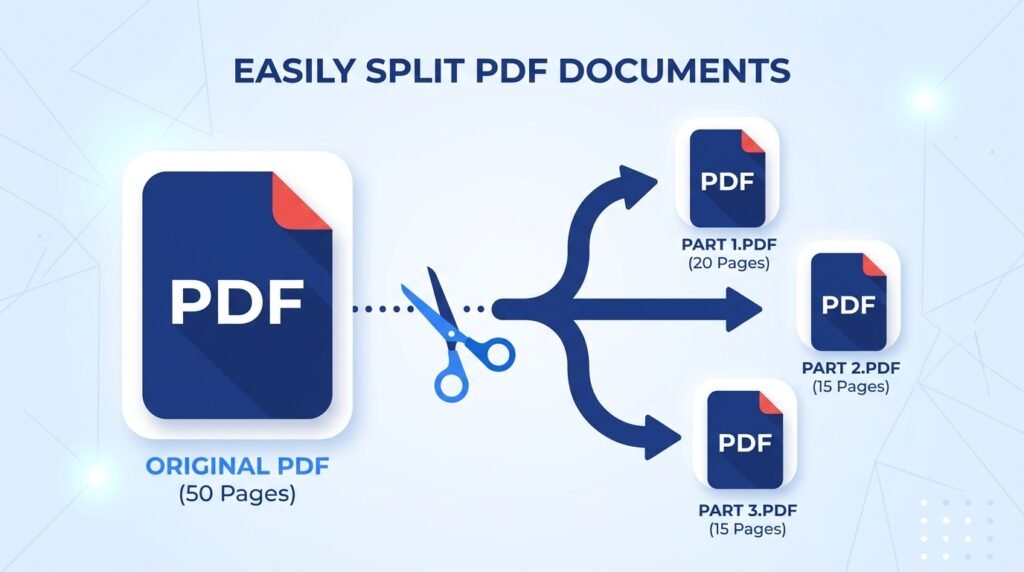
Need to split PDF documents into smaller, separate files? Whether you’re extracting a few pages from a large report, dividing a scanned document into individual sections, or separating a PDF for easier sharing, splitting a PDF online is fast, free, and doesn’t require any software. This guide walks you through exactly how to split a PDF into multiple files, step by step.
Why Split a PDF?
Breaking one large PDF into smaller files solves several common problems:
- Extracting specific pages you need without sharing the entire document
- Separating a scanned document into individual sections for easier organization
- Reducing file size by splitting a large PDF into smaller, more manageable pieces
- Isolating sensitive pages before sharing the rest of a document
- Creating individual files from a document that was originally scanned or merged as one large PDF
How to Split a PDF Online (Step-by-Step)
Using our free PDF splitter takes just a few simple steps:
- Open the PDF splitter tool on this page
- Upload the PDF file you want to split
- Choose how you want to split it — by specific page ranges, individual pages, or at set intervals
- Preview the resulting files before finalizing
- Click “Split” and download your separated PDF files instantly
No software installation, no sign-up, and no watermark added to your files — the entire process runs directly in your browser.
Ways to Split a PDF: Page Ranges vs. Individual Pages
Depending on what you need, there are generally two common approaches to dividing a PDF:
Split by page range: Useful when you need specific sections of a document, such as extracting pages 5 through 10 from a 50-page report. This creates one or more files containing exactly the range you specify.
Split into individual pages: Useful when you need every page as its own separate file, such as breaking a 10-page scanned document into 10 individual single-page PDFs. This is common when each page needs to be handled, renamed, or shared independently.
Most PDF splitter tools, including this one, support both methods, so you can choose whichever fits your specific task.
How to Extract Pages from a PDF
If you only need a few specific pages rather than splitting the entire document, extracting pages works slightly differently from a full split:
- Upload your PDF file to the tool
- Select only the specific pages you want to extract (for example, pages 3, 7, and 12)
- Confirm your selection in the preview
- Download a new PDF containing only the extracted pages
This is especially useful when you need to pull out a single form, certificate, or section from a much larger document without keeping the rest.
Common Uses for Splitting a PDF
Extracting a specific chapter or section: Pulling out just the relevant pages from a lengthy report, ebook, or manual without sharing the entire file.
Separating scanned documents: Dividing a bulk scan (like several ID cards or forms scanned together) into individual files for each document.
Reducing file size for sharing: Breaking a very large PDF into smaller parts that are easier to email or upload where file size limits apply.
Isolating sensitive content: Splitting a document to share only the non-sensitive pages while keeping confidential sections separate.
Organizing multi-part documents: Converting one large merged PDF back into its original individual sections for easier management.
PDF Splitter vs. PDF Page Extractor: What’s the Difference?
These terms are often used interchangeably, but there’s a subtle distinction worth knowing:
A PDF splitter typically divides an entire document into multiple resulting files, covering all the original pages across the output files.
A PDF page extractor typically pulls out only the specific pages you select, producing one file with just those pages, while the rest of the original document isn’t necessarily preserved as separate output.
In practice, most online tools — including this one — combine both capabilities, letting you either split the whole document or extract just the pages you need.
Is It Safe to Split PDF Files Online?
When using any online document tool, it’s worth checking for a few basics:
- No permanent storage of your uploaded files after processing is complete
- A secure, encrypted connection (HTTPS) for uploads and downloads
- No requirement to create an account or share personal information
- Clear file size limits so the tool remains fast and reliable
Our PDF splitter processes your files securely without requiring sign-up, so you can work with sensitive documents like contracts, ID scans, or certificates with confidence.
Tips for Splitting PDFs Smoothly
- Review the full document first to identify exactly which pages or ranges you need before starting
- Use the preview feature (if available) to confirm your selection before finalizing the split
- Name your output files clearly, especially when splitting into many individual pages, to keep them organized
- If you plan to recombine files later, keep track of the original page order for easier reassembly
- For very large documents, consider splitting in stages if the tool has a page count or file size limit
Frequently Asked Questions
Is this PDF splitter tool completely free? Yes, the tool is completely free to use with no hidden charges, watermarks, or sign-up requirements. You can split as many PDF files as you need.
Can I split a PDF into individual single-page files? Yes, most PDF splitter tools, including this one, allow you to split a document so that each page becomes its own separate file.
What’s the difference between splitting a PDF and extracting pages? Splitting typically divides the entire document into multiple output files, while extracting pulls out only the specific pages you select into one new file, leaving the rest of the original document as is.
Will splitting a PDF reduce its quality? No, splitting a PDF simply separates existing pages into different files without altering their original content or quality.
Do I need Adobe Acrobat or other software to split a PDF? No, this tool works entirely online through your browser, so there’s no need for Adobe Acrobat or any other PDF software.
Can I choose specific pages instead of splitting the whole document? Yes, you can select specific pages or page ranges to extract, rather than splitting the entire document into separate files.
Final Thoughts
Splitting a PDF doesn’t need to be complicated or require expensive software. With the free tool above, you can divide a large document into smaller files, extract specific pages, or separate scanned content into individual sections in just a few clicks. Whether you need one page or a full multi-part split, the process stays quick, secure, and completely free.